


Applicabilité
Applicable à : Gate Web
Préparation : Assurez-vous d’être connecté à GateClaw (Blue Lobster)
Durée estimée : 5 minutes
Objectif
Ce guide explique comment consulter, installer et utiliser les fonctionnalités de GateClaw (Blue Lobster) sur Gate Web.
Étapes
Étape 1 : Afficher les compétences
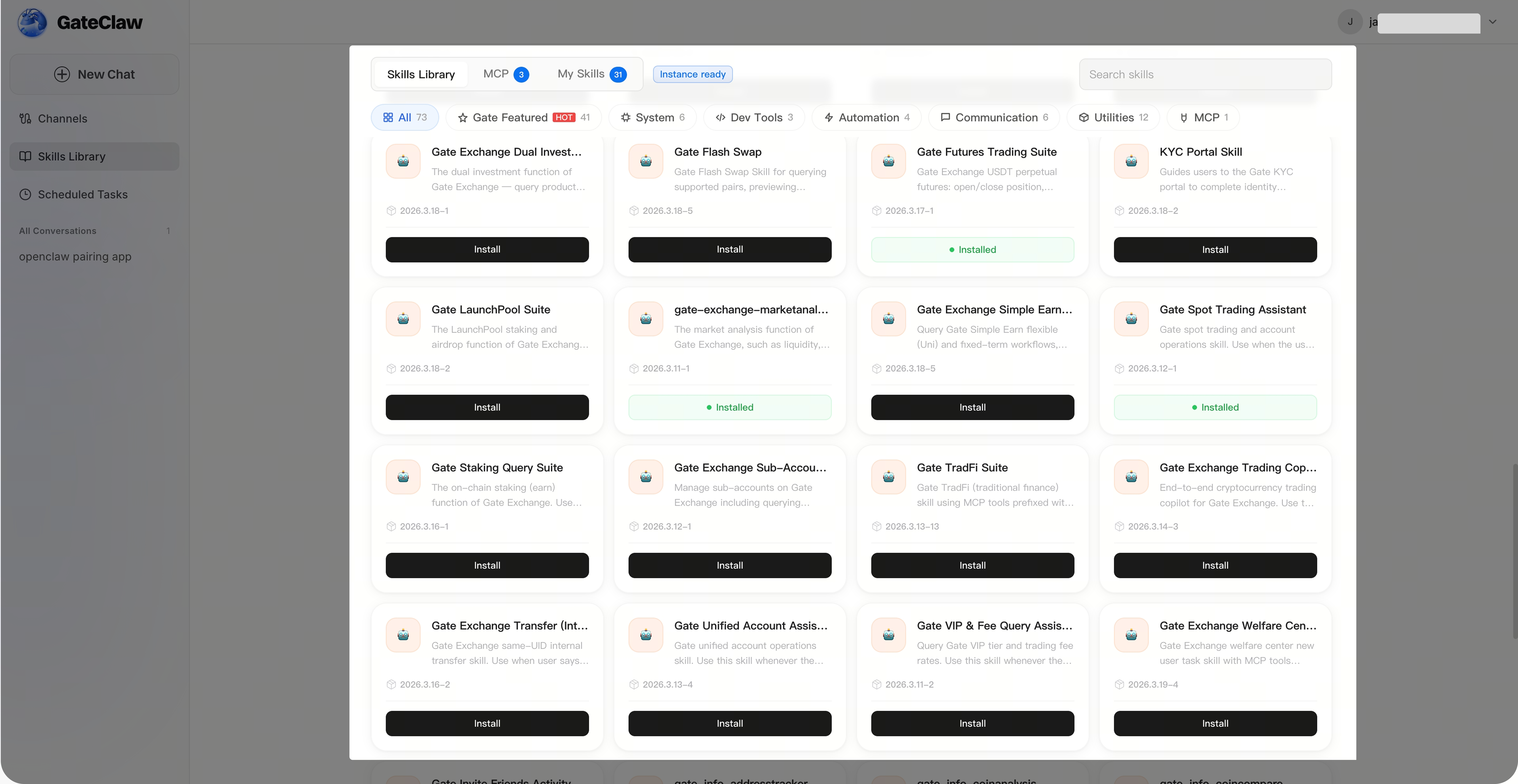
Sur la page [GateClaw], cliquez sur [Bibliothèque de compétences]. L’interface affiche par défaut la liste complète des fonctionnalités, où vous pouvez consulter leur statut d’installation.
Étape 2 : Recherche de compétences
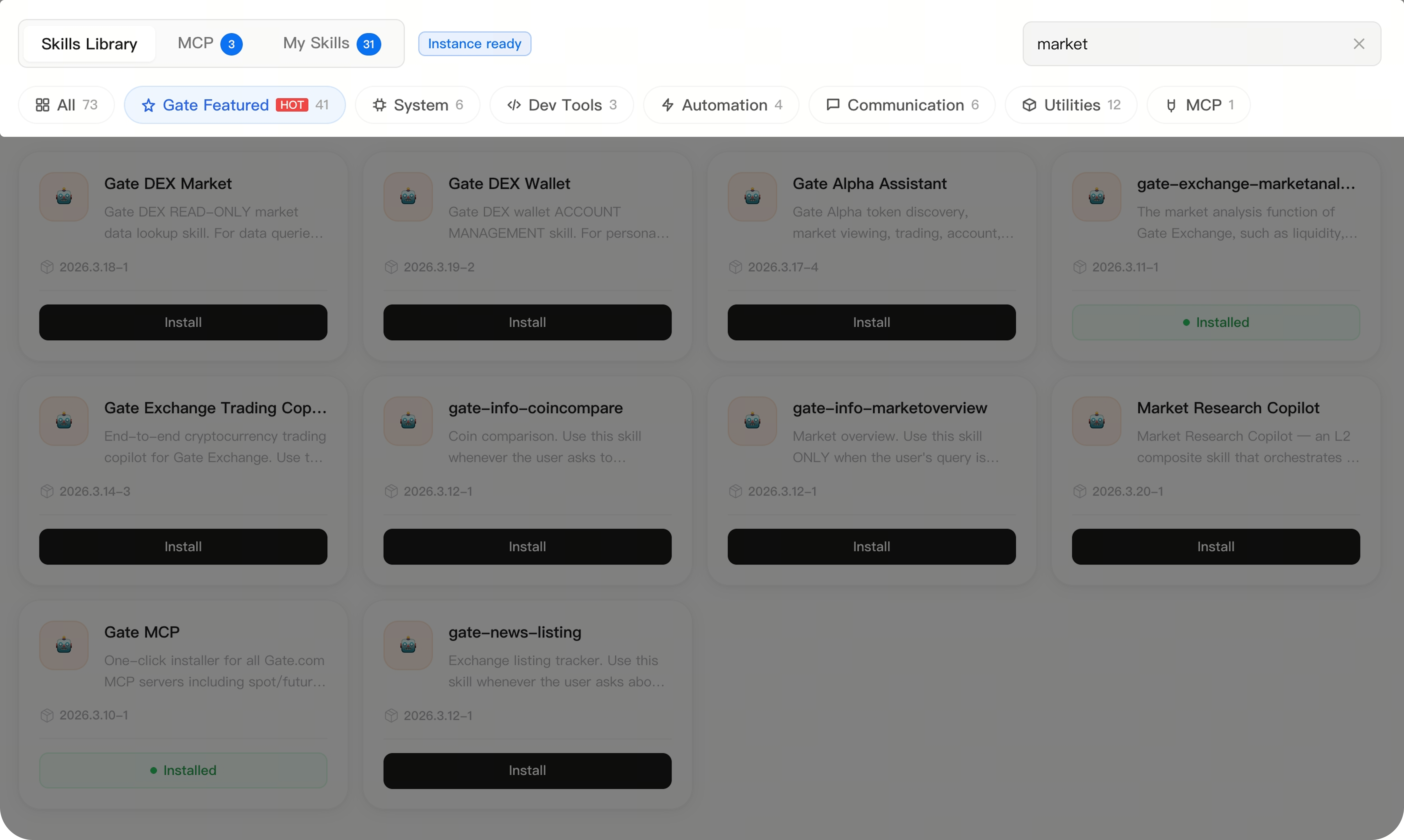
Sur la page [GateClaw] - [Bibliothèque de compétences], vous pouvez trouver des compétences en filtrant ou en recherchant leur nom.
Étape 3 : Installer les compétences
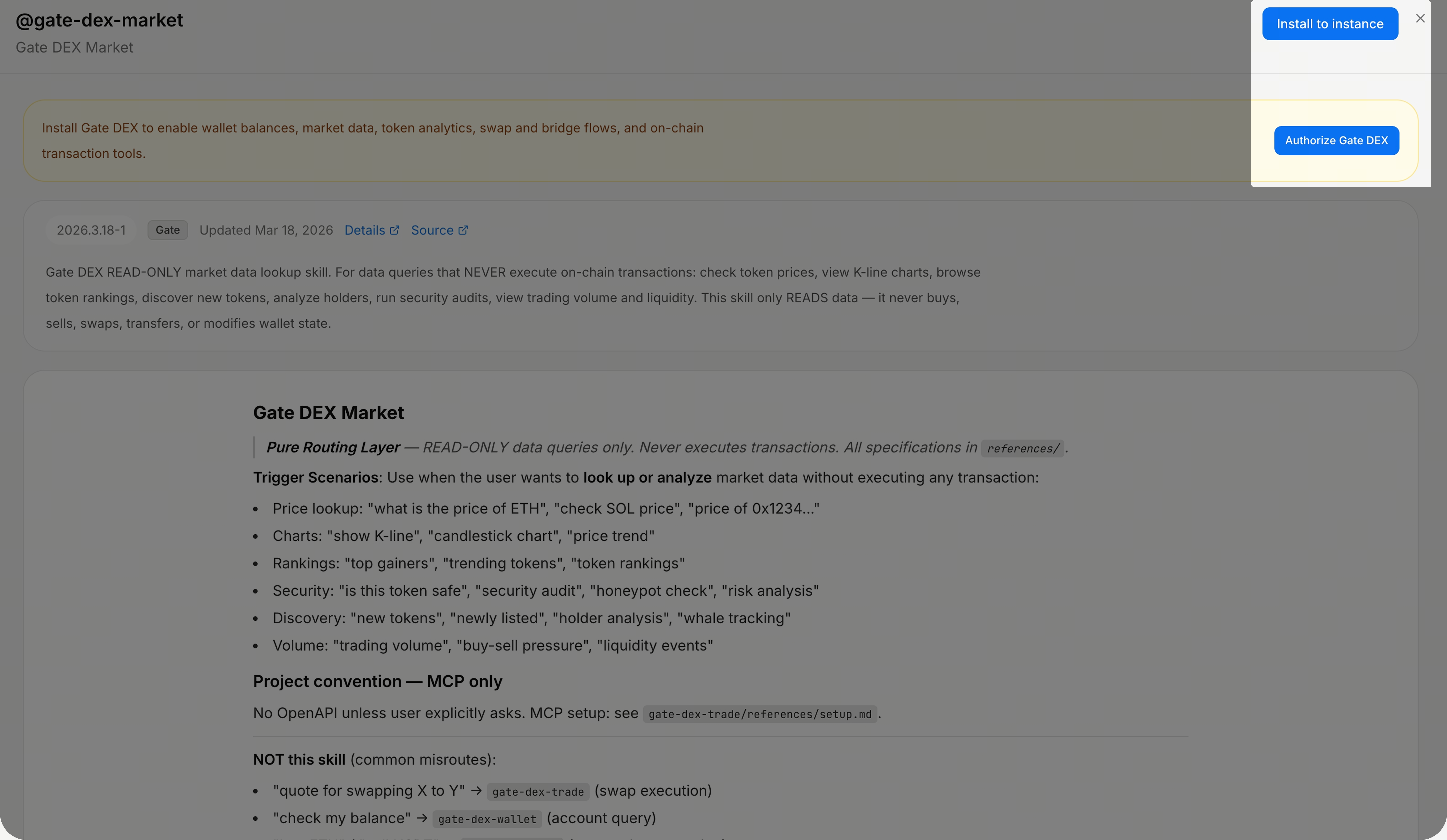
Cliquez sur la carte de compétence correspondante pour ouvrir la page [Détails de la compétence]. Vous pouvez consulter les détails et cliquer sur [Installer] en haut à droite (si une autorisation est requise, cliquez d’abord sur autoriser). Le système installe automatiquement la compétence.
Étape 4 : Utiliser les compétences
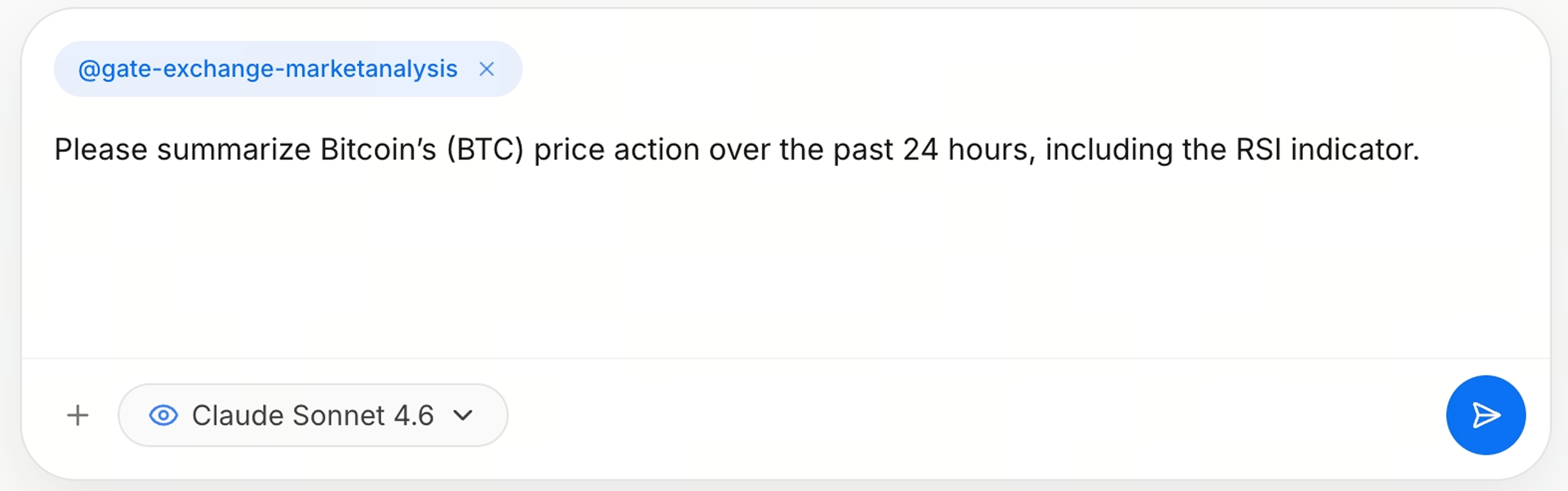
Dans la conversation, vous pouvez @mentionner la compétence nécessaire (si aucune compétence n’est précisée, GateClaw sélectionne automatiquement la plus adaptée), puis décrire la tâche en langage naturel et envoyer le message.
Étape 5 : Afficher la réponse
GateClaw analyse automatiquement et vous répond. Vous pouvez naviguer en ligne ou copier.

FAQ
Q1 : Quelles sont les compétences qui nécessitent une autorisation manuelle ?
R : Certaines compétences impliquant des opérations sensibles ou nécessitant l’autorisation de services tiers requièrent une autorisation manuelle. Le système vous invite à l’accorder lors de l’installation.
Q2 : Que faire si l’installation d’une compétence échoue ?
R : Vérifiez que votre connexion réseau fonctionne correctement. Si une autorisation est requise, assurez-vous qu’elle est complète. Si le problème persiste, contactez le support client Gate.
Q3 : Puis-je utiliser plusieurs compétences en même temps ?
R : Oui. Vous pouvez spécifier une compétence dans la conversation ou laisser GateClaw sélectionner automatiquement la plus adaptée.
Q4 : Comment savoir à quoi sert une compétence ?
R : Cliquez sur la carte de la compétence dans la bibliothèque de compétences pour consulter sa description détaillée et son guide d’utilisation.
Q5 : Les compétences peuvent-elles être désinstallées ?
R : Oui. Vous pouvez trouver les compétences installées dans la bibliothèque de compétences et sélectionner désinstaller.
Clause de non-responsabilité
Le contenu présenté ici est fourni à titre informatif et éducatif uniquement et ne constitue en aucun cas un conseil financier, d'investissement, de trading ou juridique, ni une offre ou une sollicitation d'achat ou de vente de tout actif numérique. Gate ne donne aucune garantie expresse ou implicite quant à l'exactitude, l'exhaustivité ou l'actualité des informations contenues dans ce Les fonctions des produits, les interfaces, les règles et les structures tarifaires peuvent être modifiées ou ajustées à tout moment. Veuillez vous référer aux dernières annonces ainsi qu'aux informations affichées sur la plateforme Gate pour obtenir les détails les plus précis.
Les investissements en actifs numériques comportent des risques importants, et les prix peuvent connaître d'importantes fluctuations. Vous pouvez perdre la totalité de votre investissement. Veillez à prendre vos décisions avec prudence, en fonction de votre situation financière et de votre tolérance au risque, après avoir pleinement compris les risques associés. Si nécessaire, il est recommandé de consulter un conseiller financier ou juridique indépendant.
Pour plus d'informations sur les risques potentiels, veuillez consulter la déclaration des risques et les conditions d'utilisation de Gate.
