


Overview
Gate Skills Hub is a skills center that connects various tools and capabilities, enabling AI to move from simply answering questions to executing tasks. With a single click, you can access tools, data, and automation skills to complete real-world tasks.
Whether you use Gate Claw, OpenClaw, Cursor, Claude.ai / Claude CLI, Codex App / Codex CLI, Gemini CLI, or platforms like Windsurf, Amp, Cline, Claude Code, you can search, install, and manage skills through Skills Hub to expand AI's capabilities.
Visit Skills Hub now: https://www.gate.com/skills-hub
Installation
Gate Skills Hub offers two ways to install:
I'm Human: manually copy commands and install (ideal for developers or terminal users)
I'm an Agent: AI automatically manages skills (ideal for automation or integration scenarios)
I'm Human—Terminal Installation
📥 Step 1: Install Skills Hub CLI
1. Open your terminal and run the installation command
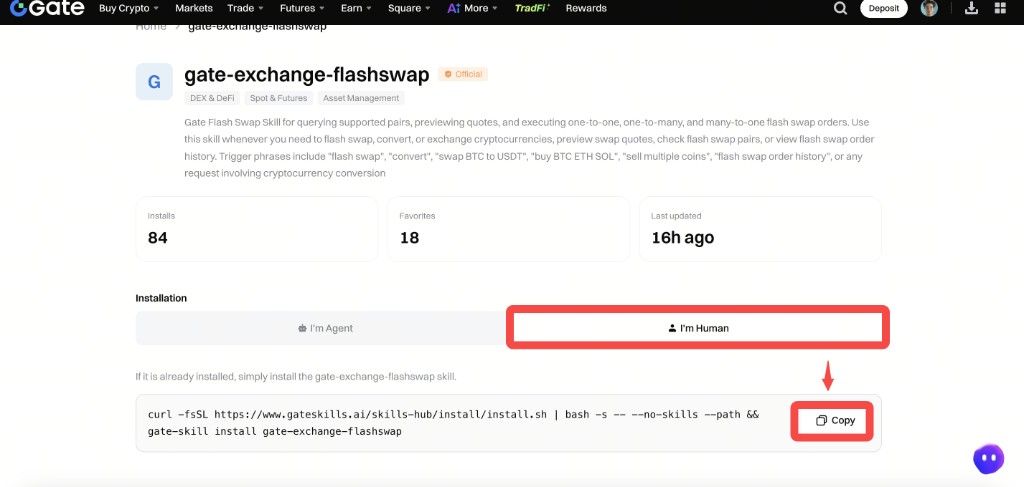
Gate Skills Hub provides a command-line interface (CLI) to search, browse, and manage skills directly from your terminal. To install a skill, follow Step 3: go to the skill's detail page, select [I'm Human], and copy the one-click installation command (see below).
curl -fsSL https://www.gateskills.ai/skills-hub/install/install.sh | bash -s -- --no-skillsThis installs the CLI only; no skills are included. Remove "--no-skills" to install recommended skills simultaneously.
2. Activate the PATH
After installation, reopen your terminal or run the following command:
source ~/.zshrc # or reopen your terminal3. Verify installation
gate-skill versionIf the version number is displayed, the installation was successful.
🔍 Step 2: Search and Browse Skills
Skills Hub includes 10,000+ skills across categories like development tools, search & data, productivity, AI, content creation, social & communication, Web3 & finance, and lifestyle services.
You can browse online at https://www.gate.com/skills-hub, explore all skills by category, and view details such as the skill description and author.
Search via CLI:
gate-skill search <关键词>Examples:
gate-skill search email # search email-related skills
gate-skill search mcp # search MCP-related skills
gate-skill list # list popular skills
gate-skill list --desc # list popular skills with description
gate-skill list --hot=false # list all skills
📦 Step 3: Install Skills
Go to the Skill Details Page
Search for and click on the target skill (e.g., openhue) in the official Skills Hub to open its details page.
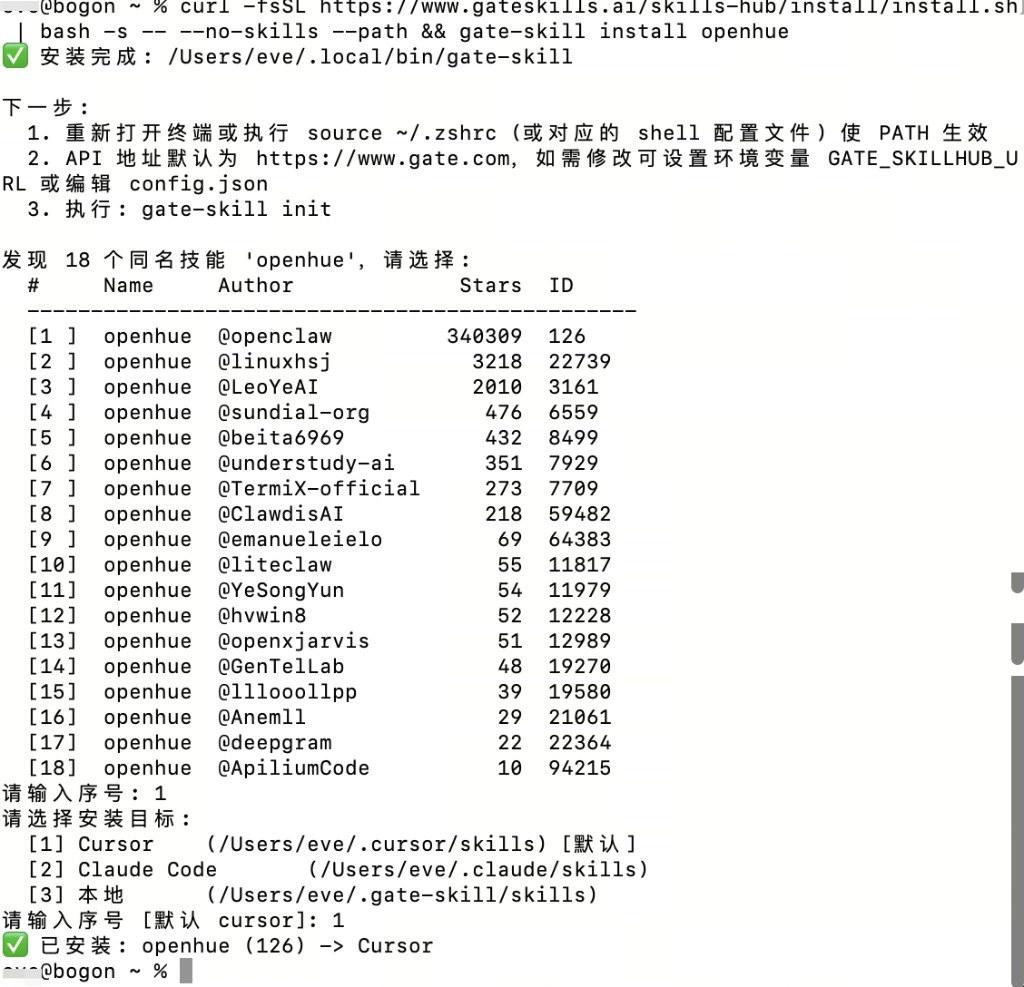
Run in Terminal
Paste the command in the terminal and run it. After installation, restart your agent client (Cursor, Claude CLI, Codex, Gemini CLI, etc.) to load the new skill.
🛠️ Step 4: Manage Installed Skills
List Installed Skills:
gate-skill list-installed # View installed skills on the default target platform
gate-skill list-installed --all # View installed skills across all platforms
gate-skill list-installed --target cursor # View skills installed on Cursor
Upgrade Skills
gate-skill upgrade # Upgrade all installed skills
gate-skill upgrade gate-dex-trade # Upgrade a specific skill
gate-skill upgrade --cli # Upgrade the CLI itself
Uninstall Skills
gate-skill uninstall <技能名称> --target <目标平台>💬 Step 5: Use Skills
Once installed, your agent automatically recognizes and loads skills. Trigger skills via natural language commands.
Examples
| Command | Skill Triggered | Function |
|---|---|---|
| Check BTC price / on-chain data | gate-dex-market | Token prices, rankings |
| Swap USDT for ETH; other DEX trades | gate-dex-trade | On-chain Swap |
| Check account balance / assets | gate-exchange-assets | Exchange balance queries |
| Convert USDT ↔ ETH and others | gate-exchange-flashswap | Convert |
| Trending live streams / replays | gate-info-liveroomlocation | Live & replay listings |
| Analyze a token | gate-info-coinanalysis | Comprehensive coin analysis |
| Recent crypto news | gate-news-briefing` | News briefing |
I'm an Agent—Agent Installation
📥 Step 1: Install the Skills Hub CLI (OpenClaw/Cursor/CLI, etc.)
1. Run the installation command
In environments like Cursor, OpenClaw, Claude CLI, Codex, and Gemini CLI, you can run the installation command to install the CLI. You can also install it automatically when installing a specific skill.
Follow the instructions at "https://www.gateskills.ai/skills-hub/install/skillhub.md" to install only the CLI for Gate Skills Hub, without any additional skills.2. Confirm CLI installation with the agent using natural language
In conversations within Cursor and similar environments, you can simply use natural language, for example: "Gate Skills Hub CLI version." If the version number is displayed, the installation was successful.
3. Confirm CLI installation with the agent via command line
In environments like Cursor, you can also verify the CLI installation by running a command to check if Gate CLI was successfully installed.
gate-skill versionIf the version number is displayed, the installation was successful.
📦 Step 2: Install Skills
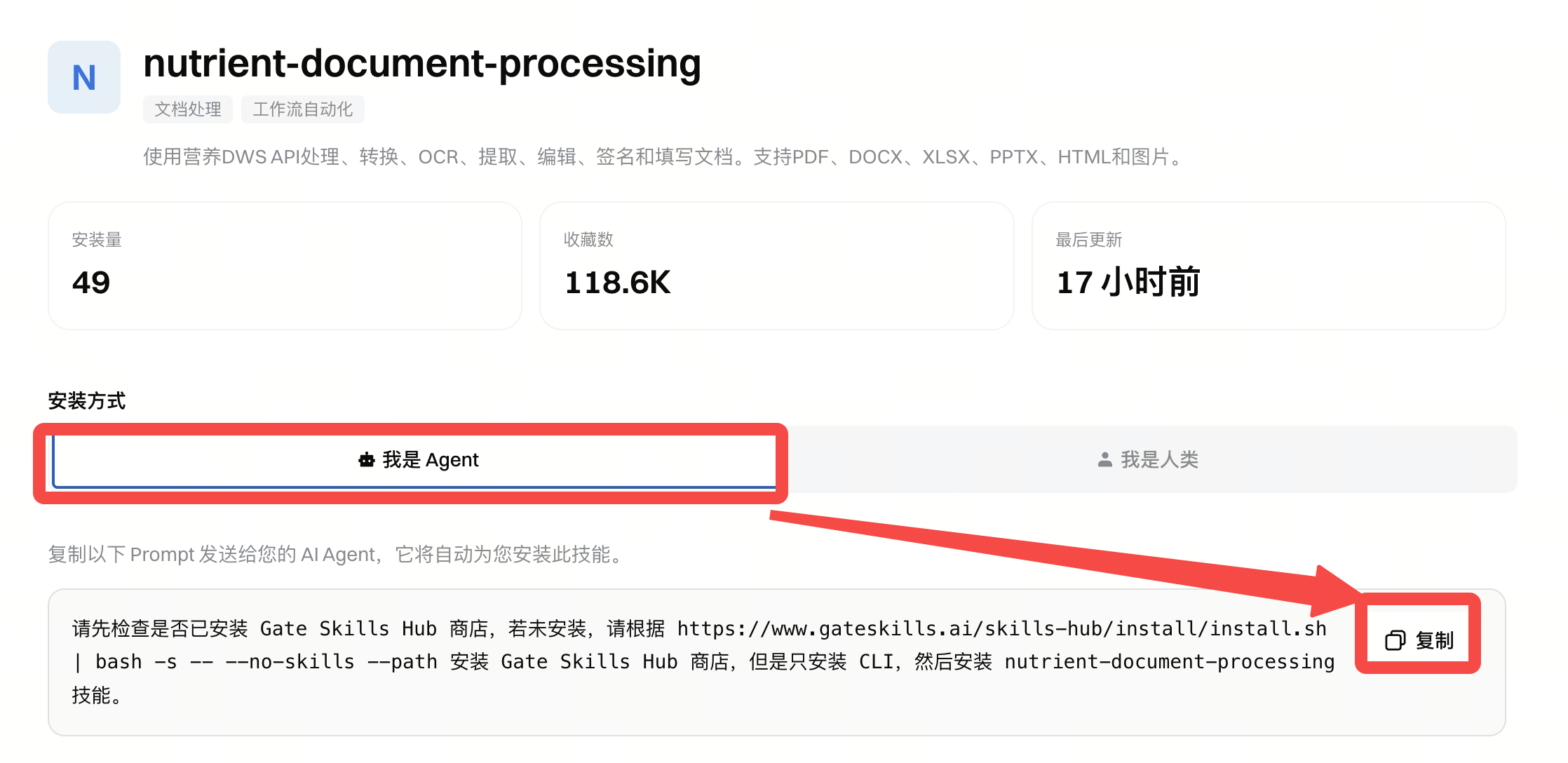
- Open Skills Hub, go to the skill detail page.
- Select [I'm an Agent] under [Installation] and copy the one-line command.
- Paste it into your agent environment to install.Note: Specific commands are generated on the details pages.
🖥️ Agent Platforms and Installation
| Platform | Installation |
|---|---|
| Gate Claw(Gate Blue Lobster) | Built-in skills market, online install |
| OpenClaw | Click [I'm an Agent] to install skills from skill page |
| Cursor | Same as above |
| Claude.ai / Claude CLI | Same as above |
| Codex App / Codex CLI | Same as above |
| Gemini CLI | Same as above |
| Others | Windsurf, Amp, Cline, Claude Code |
FAQ
| Question | Answer |
|---|---|
| How to troubleshoot CLI installation errors? | Make sure your network connection is stable (connect via VPN if needed), then try running the installation command again. If it still fails, check whether a proxy needs to be set: export https_proxy=http://<your-proxy-address>:<port> |
| How to activate installed skills? | After installation, we recommend restarting your agent client (such as Cursor, Claude CLI, Codex, Gemini CLI, etc.). Once restarted, the agent will automatically load any newly installed skills. |
| How do I update a skill to the latest version? | gate-skill upgrade Upgrade all installed skills; gate-skill upgrade --cli Upgrade the CLI itself. |
| Are skills safe? | Official Gate skills are maintained by the Gate team and have undergone security audits. Community skills display a security assessment report during installation, covering three dimensions: Gen, Socket, and Snyk. It's recommended to review the skill's content before use, as skills have full Agent-level permissions when running. |
| Which environments are supported by the CLI? | It supports macOS (Intel / Apple Silicon) and Linux (amd64/arm64). Windows users should use WSL (Windows Subsystem for Linux). |
Disclaimer
The content provided herein is for reference and educational purposes only and does not constitute any financial, investment, trading, or legal advice, nor does it constitute an offer or solicitation to buy or sell any digital assets. Gate makes no express or implied representations or warranties regarding the accuracy, completeness, or timeliness of the information contained herein. Product features, interfaces, rules, and fee structures may be updated or adjusted at any time. Please refer to the latest announcements and the actual information displayed on the Gate platform for the most accurate details.
Digital asset investments involve significant risk, and prices may fluctuate substantially. You may lose the entire amount of your investment. Please make decisions cautiously based on your own financial situation and risk tolerance after fully understanding the associated risks. If necessary, you are advised to consult an independent professional financial or legal advisor.
For more information about potential risks, please refer to Gate's Risk Disclosure and User Agreement.
