


Применимость
Применимо к: Gate Web
Подготовка: Убедитесь, что вы вошли в GateClaw (Blue Lobster)
Ориентировочное время: 5 минут
Цель
В этом руководстве показано, как просматривать, устанавливать и использовать навыки GateClaw (Blue Lobster) на Gate Web.
Шаги
Шаг 1: Просмотр навыков
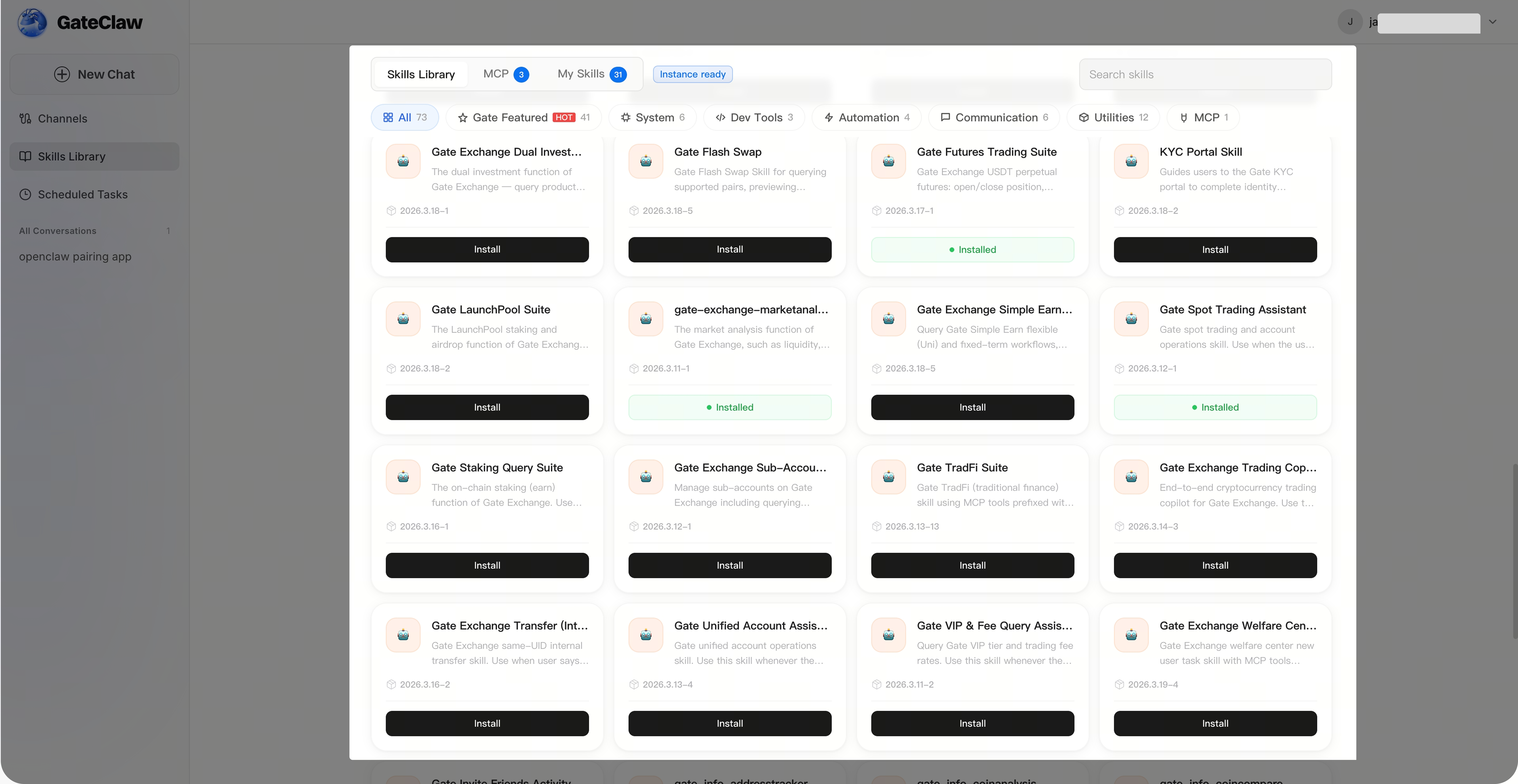
На странице [GateClaw] нажмите [Библиотека навыков]. По умолчанию интерфейс отображает полный список навыков в библиотеке, где вы можете увидеть статус установки всех навыков.
Шаг 2: Поиск навыков
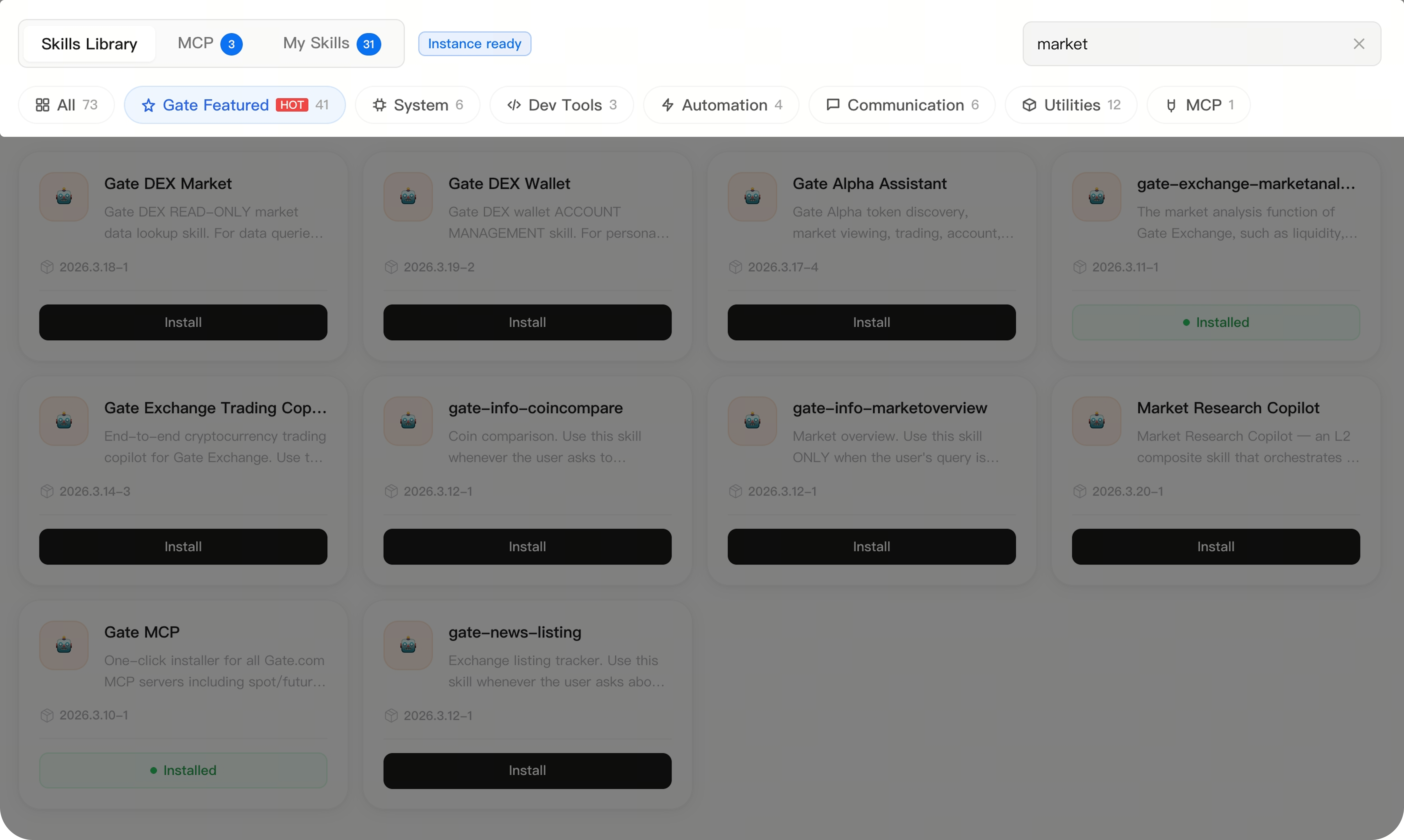
На странице [GateClaw] – [Библиотека навыков] вы можете находить навыки с помощью фильтрации или поиска по названию.
Шаг 3: Установка навыков
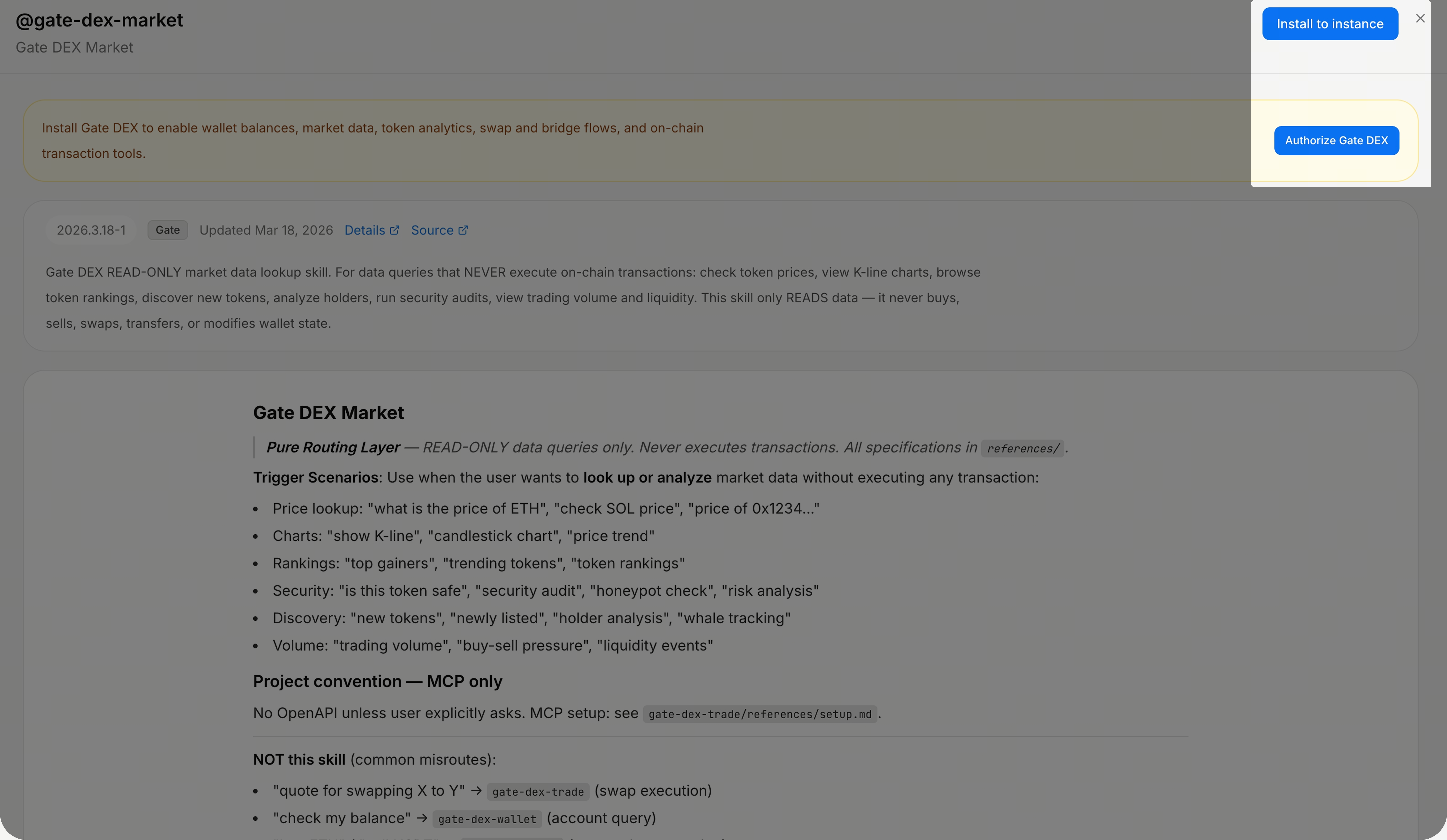
Нажмите на соответствующую карточку навыка, откроется страница [Детали навыка]. Здесь вы можете ознакомиться с подробной информацией о навыке и нажать кнопку [Установить] в правом верхнем углу (если для навыка требуется ваша авторизация, сначала нажмите «Авторизовать»). Система автоматически установит навык для вас.
Шаг 4: Использование навыков
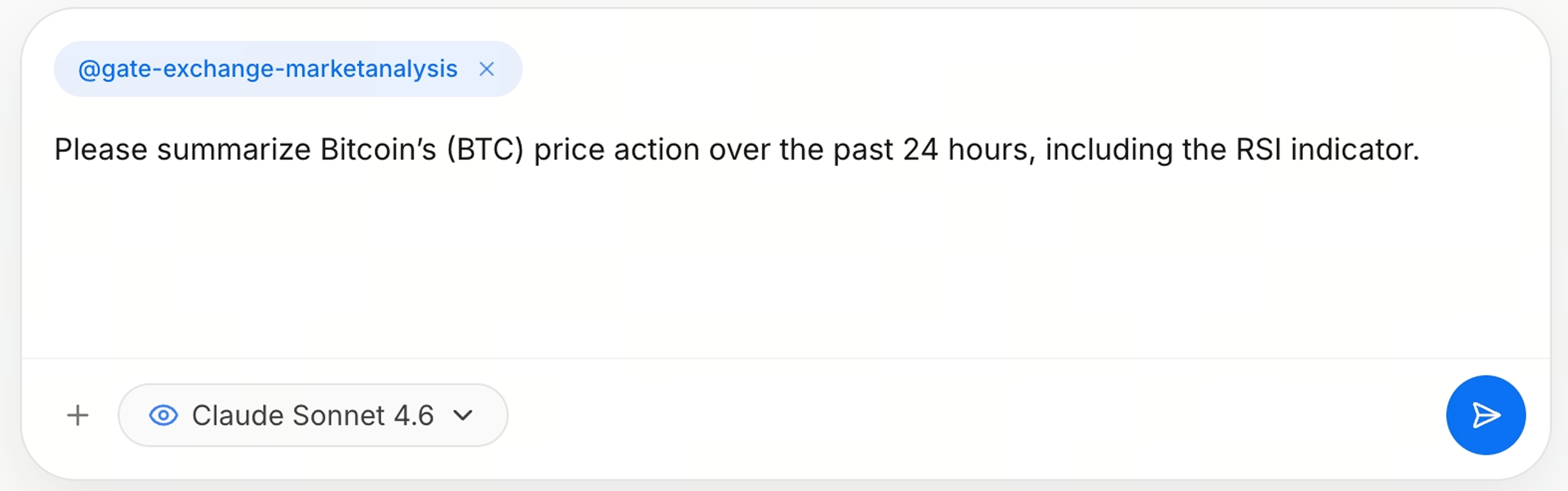
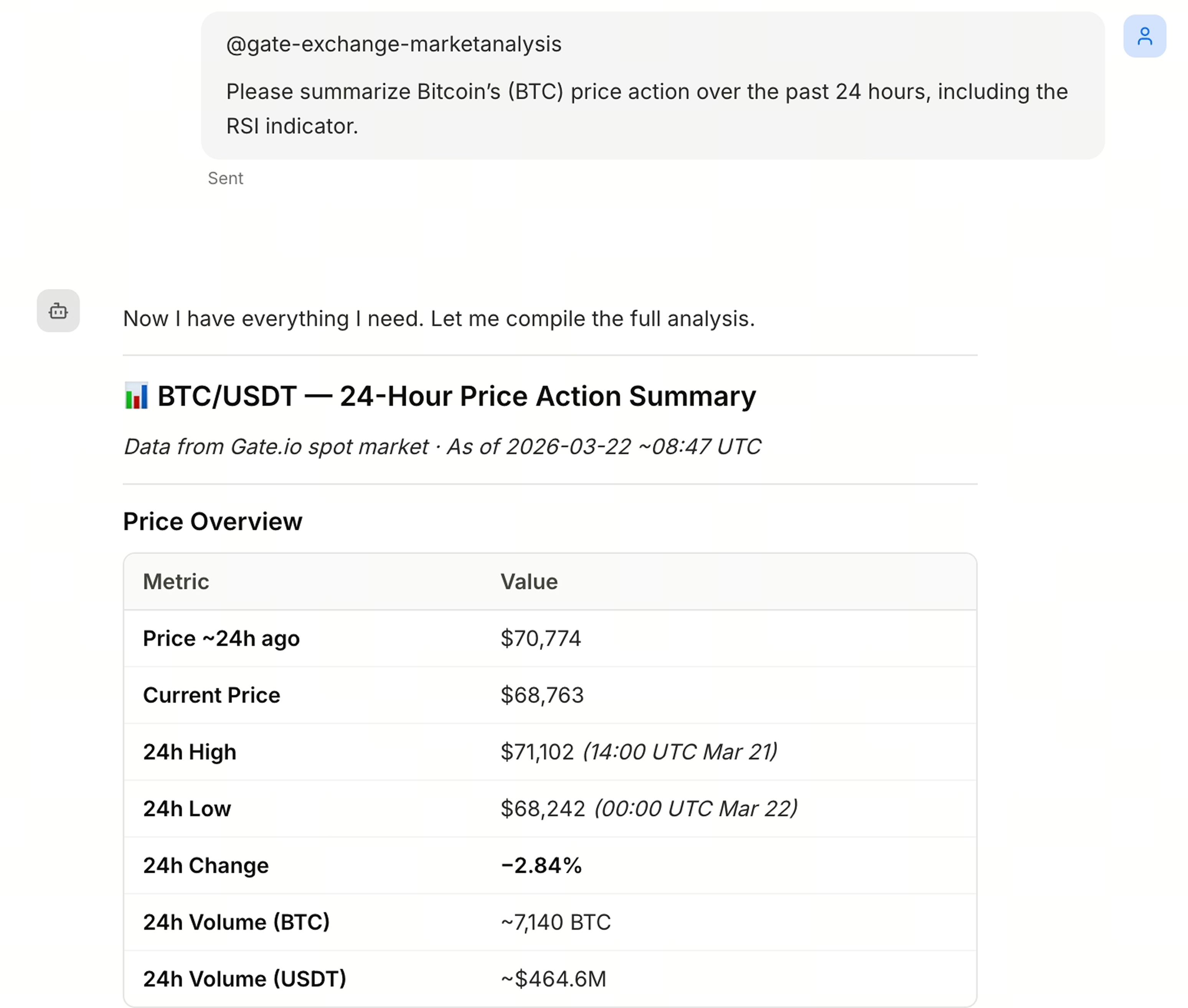
В чате вы можете @упомянуть нужный навык (если вы не укажете навык, GateClaw все равно автоматически выберет оптимальный вариант), затем опишите задачу на естественном языке и отправьте сообщение.
Шаг 5: Просмотр ответа
GateClaw автоматически проанализирует ваш запрос и отправит ответ. Вы можете просмотреть его онлайн или скопировать.
FAQ
Q1: Какие навыки требуют ручной авторизации?
A: Некоторые навыки, связанные с чувствительными операциями или требующие авторизации сторонних сервисов, требуют вашей ручной авторизации. Система подскажет об этом во время установки.
Q2: Что делать, если установка навыка не удалась?
A: Проверьте, стабильна ли ваша сеть. Если навык требует авторизации, убедитесь, что процесс авторизации завершён. Если проблема сохраняется, обратитесь в службу поддержки Gate.
Q3: Можно ли использовать несколько навыков одновременно?
A: Да. Вы можете указать нужный навык в чате или позволить GateClaw автоматически выбрать наиболее подходящий.
Q4: Как узнать, что делает навык?
A: Нажмите на карточку навыка в библиотеке, чтобы ознакомиться с подробным описанием и инструкцией по использованию.
Q5: Можно ли удалить навыки?
A: Да. Найдите установленные навыки в библиотеке и выберите «Удалить».
Отказ от ответственности
Содержимое, представленное здесь, предназначено только для справочных и образовательных целей и не является финансовой, инвестиционной, торговой или юридической консультацией, а также не представляет собой предложение или призыв к покупке или продаже каких-либо цифровых активов. Gate не дает никаких явных или подразумеваемых гарантий относительно точности, полноты или актуальности информации, содержащейся в этом материале. Функционал продукта, интерфейсы, правила и структура комиссий могут быть обновлены или изменены в любой момент. Для получения самой точной информации ознакомьтесь с последними объявлениями и фактическими данными, отображаемыми на платформе Gate.
Инвестиции в цифровые активы связаны с существенными рисками, их стоимость может значительно меняться. Вы можете потерять всю сумму своих вложений. Принимайте решения осознанно, учитывая собственное финансовое положение и уровень допустимого риска, после полного ознакомления со всеми сопутствующими рисками. При необходимости рекомендуется проконсультироваться с независимым профессиональным финансовым или юридическим консультантом.
Для получения дополнительной информации о возможных рисках ознакомьтесь с Раскрытием рисков и Пользовательским соглашением Gate.
